Exception Handling in Python

Exception handling is a graceful way to manage execution of a program and display user friendly information when errors occur during execution of the programs.

Let’s look at the below example to get a better understanding. User needs to provide a number to the below program and reverse of the number will be returned.

If the user provides a numerical input the “try block” will be executed and the “finally block” will be executed.

execption_handling1

However, if the user provides a non numeric input, an exception error “ValueError” will happen and code will execute the first “except” block and “finally block”.

execption_handling2.PNG

Similarly if the user provides ‘zero’ as the input, an exception error “ZeroDivisionError” will happen and code will execute the second “except” block and “finally block”.

execption_handling3.PNG

Cheers!


Python Functions

Functions are used to make certain portions of codes reusable and are a great tool to bring efficiency in the codes. In Python, we define a function using keyword “def” followed by the name of the function, the parameters and the indented block which will execute the function to produce a certain output. Let’s look at few examples.

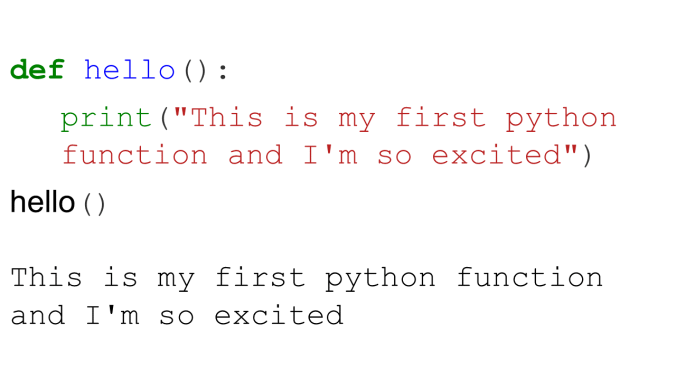
The first function is called “hello” and it takes no parameter and will print “This is my first python function and I’m so excited”, whenever this function is called [ hello ()].

Defining a simple function called “Hello” to print the below message

Slide1

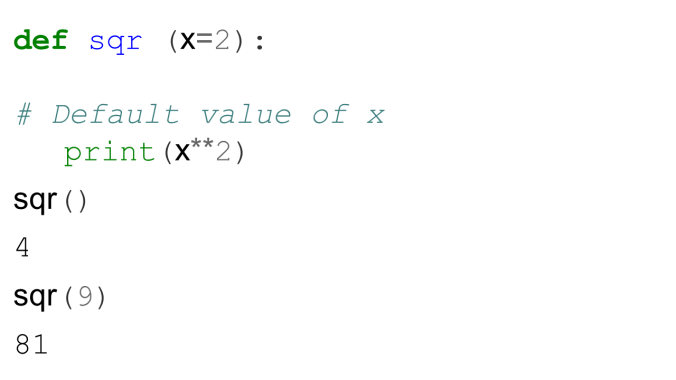
Functions may be given parameters and default values, in case the user is not providing or overwriting the default values, the function will use these values to process the codes.

Defining a function called “sqr” to square a number. The default value given is 2

Slide2

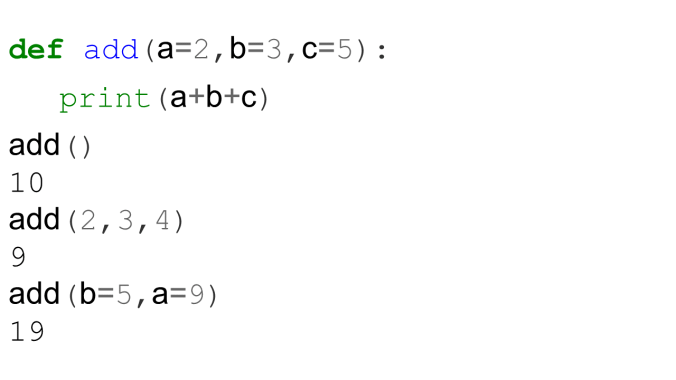
Defining a function to add three numbers with default values. Can you figure out what the below Python function is doing? What are the default values?

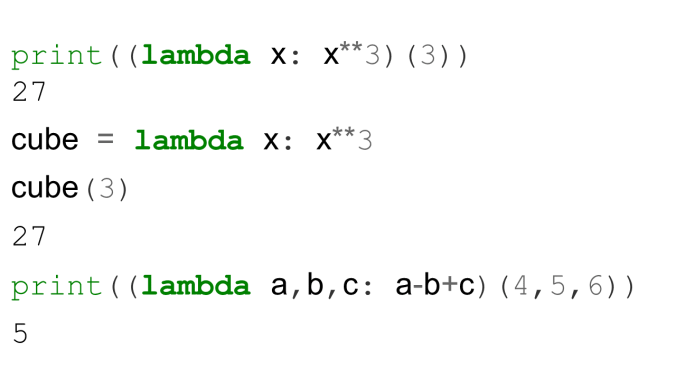
Slide3Anonymous or Lambda Functions are short functions which are generally written in a single line. For example, the below set of codes show you how we can use Lambda function to cube a number, instead of defining a function.
Slide4

Moreover, the Lambda functions can be assigned to a variable as shown in the above code, where we are assigning it to the ‘cube’ variable.

Python also has a host of in built functions – Inbuilt Functions

Thanks for reading!

Types of Variable in Python and Typecasting

Python has many types of variables. Some key ones are-

  • Integer (Whole number)
  • Float (Decimal points)
  • String (Categorical)
  • Date time

It’s easy to convert one type of variable into another type, whenever possible. It’s called “Typecasting”.  Moreover, we don’t have to specify the type specifically in Python.

Python assigns the right type depending on the value we assign. Here are some examples-

Typesofvariables

Typesofvariables1

Typesofvariables2

Typesofvariables3

Cheers!


Python Variable Naming Convention

Here are few things that we have to remember when naming variables and objects in Python.

  • Python is a case sensitive language. ‘x’ and ‘X’ will be treated as different variables.
  • Python variables can have letter, numbers and underscores only
  • The variable names to begin with a letter or underscore only
  • Single line comments are denoted with ” # ‘ and multiple line comments are with triple quotes ”’ ”’

Few examples-

Python_Variable_Naming.PNG

Cheers!

Comparison or Logical Operations in Python

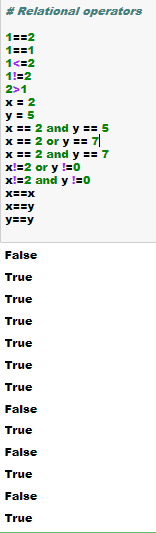
Various logical, boolean and comparison operations can be conducted in Python using simple codes such as shown below

For example,  “1 == 2” is testing or whether 1 is equal to 2. The answer is obviously “False”. Similarly “x!=2 and y !=0” is testing whether both conditions are met, i.e. x is not equal to 2 and y is not equal to 0, which turns out be “False” as well in the below example as x is equal to 2.

Relational_Operations

Cheers!

Install and check Python Packages

Here are some examples on how you can check that necessary packages are installed in the python environment and check their version before moving forward. These are some of the must have packages. If any of the packages are not installed, you can do the anaconda install using conda prompt.  Further directions are shown in the link 

You can search for any package in anaconda environment by using the following code-

anaconda search -t conda seaborn

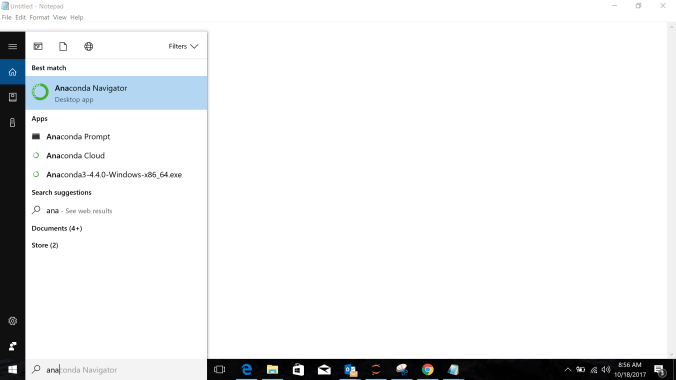
Installing a package using anaconda prompt is as simple as the line shown below. In this case we are installing a package called Seaborn on anaconda prompt. You can go to the anaconda prompt by typing anaconda prompt in the search menu.

conda install seaborn

Please note that sometimes the anaconda prompt may not let you install new packages and display certain errors like “access denied“. In that case you need to right click on the anaconda prompt shortcut and start as an administrator.

If your conda prompt screen is getting too cluttered you can always clear the screen by typing the command “cls”

Python_version

Cheers!


Setup Python Environment

In this blog, I will show you how to setup your Python environment. However, let me first briefly talk about Python

python image

Why Python?

  • Python is easy to learn
  • Codes are shorter and English like
  • Most frequently used language for data science
  • Extensible
  • Open source and free
  • Public support and forums
  • Object oriented
  • Suitable for machine learning and deep learning

Why Notebook Environment?

Here is an article that talks about that.

How to Setup the Environment?

Step 1– Download Anaconda Navigator based on your operating system (OS). Download Python 3.x version package.

https://www.anaconda.com/download/

Step 2– Start Anaconda Navigator. This may take sometime depending on your OS

anaconda_navigatorStep 3– Start Jupyter Notebook by clicking on launch button. This will open a new tab in your preferred browser.

Jupyter

Please check out Anancoda Cheatsheet for frequently used commands

Step 4– Start a new notebook by clicking on new button. Select Python 3 for the kernel

Jupyter_start

If Anaconda Navigator is not starting or giving some issues you can try to reset the Anaconda Navigator by typing the below line in the Anaconda command prompt-

anaconda-navigator –reset

Step 5-  You should see something as shown below. You are ready to write Python codes in Jupyter notebook environment now.

Jupyter_notebook

Step 6- Check the present working directory by typing the below command-

pwd()

Cheers!