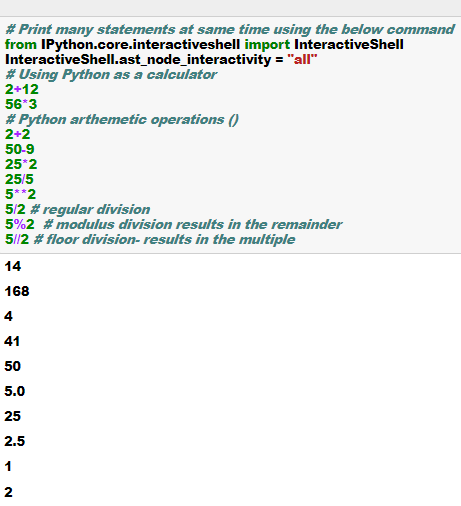
Few example on Python can be used as a calculator and conducting arithmetic operations such as multiplication, division, modulo and floor division
Cheers!
Few example on Python can be used as a calculator and conducting arithmetic operations such as multiplication, division, modulo and floor division
Cheers!
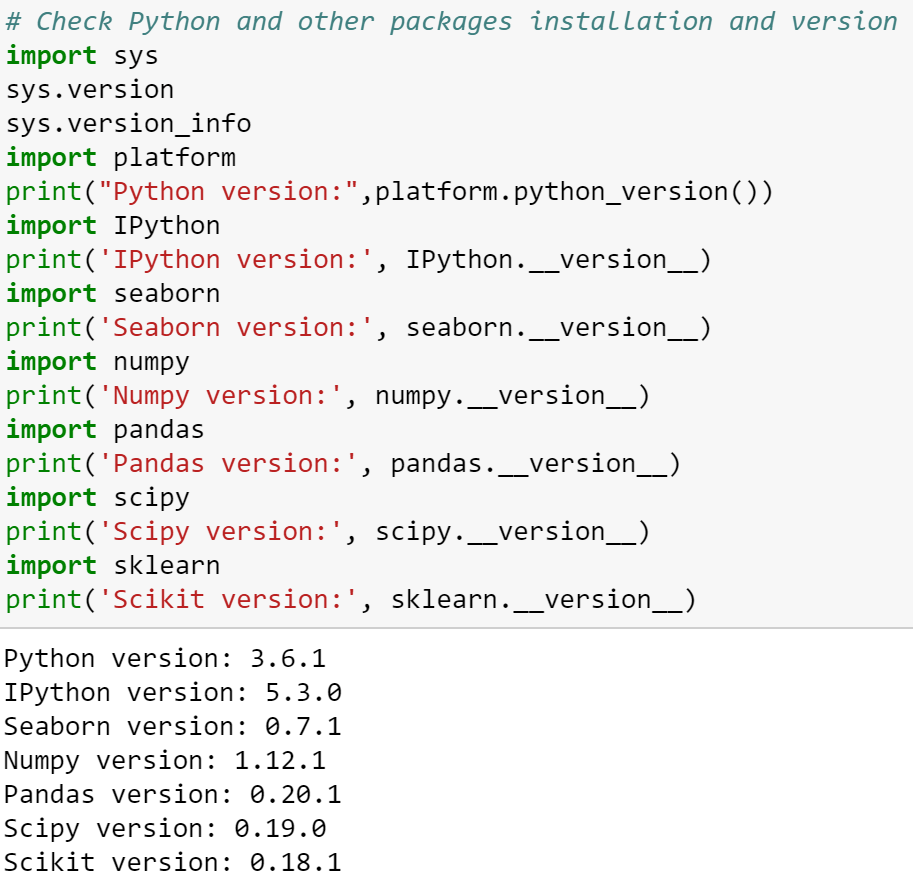
Here are some examples on how you can check that necessary packages are installed in the python environment and check their version before moving forward. These are some of the must have packages. If any of the packages are not installed, you can do the anaconda install using conda prompt. Further directions are shown in the link
You can search for any package in anaconda environment by using the following code-
anaconda search -t conda seaborn
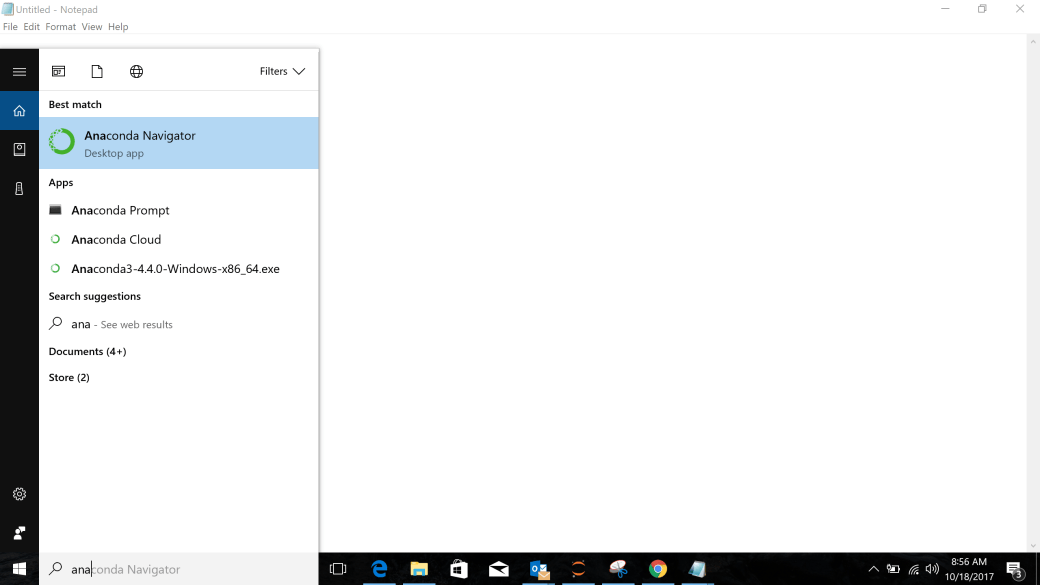
Installing a package using anaconda prompt is as simple as the line shown below. In this case we are installing a package called Seaborn on anaconda prompt. You can go to the anaconda prompt by typing anaconda prompt in the search menu.
conda install seaborn
Please note that sometimes the anaconda prompt may not let you install new packages and display certain errors like “access denied“. In that case you need to right click on the anaconda prompt shortcut and start as an administrator.
If your conda prompt screen is getting too cluttered you can always clear the screen by typing the command “cls”
Cheers!
In this blog, I will show you how to setup your Python environment. However, let me first briefly talk about Python
Why Python?
Why Notebook Environment?
Here is an article that talks about that.
How to Setup the Environment?
Step 1– Download Anaconda Navigator based on your operating system (OS). Download Python 3.x version package.
https://www.anaconda.com/download/
Step 2– Start Anaconda Navigator. This may take sometime depending on your OS
 Step 3– Start Jupyter Notebook by clicking on launch button. This will open a new tab in your preferred browser.
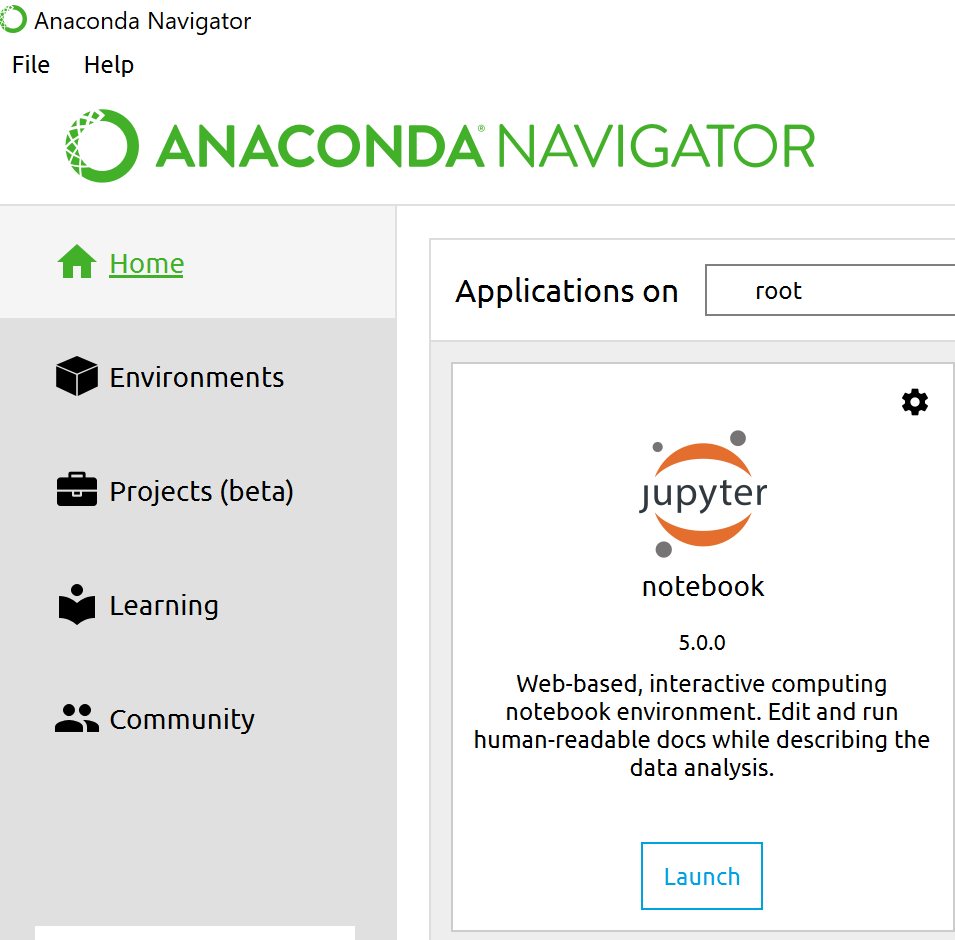
Please check out Anancoda Cheatsheet for frequently used commands
Step 4– Start a new notebook by clicking on new button. Select Python 3 for the kernel

If Anaconda Navigator is not starting or giving some issues you can try to reset the Anaconda Navigator by typing the below line in the Anaconda command prompt-
anaconda-navigator –reset
Step 5- You should see something as shown below. You are ready to write Python codes in Jupyter notebook environment now.
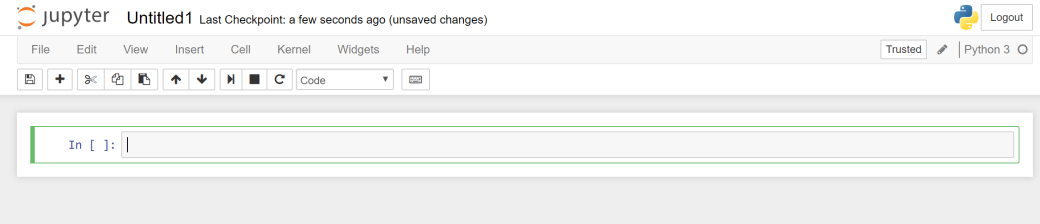
Step 6- Check the present working directory by typing the below command-
pwd()
Cheers!


You must be logged in to post a comment.